 Block
BlockHow to Check if Your Image Resolution is High Enough for a Giant Poster
How to check if your photo is sharp enough for a giant wall poster in under 60 seconds. Quick pixel benchmarks and test print methods.
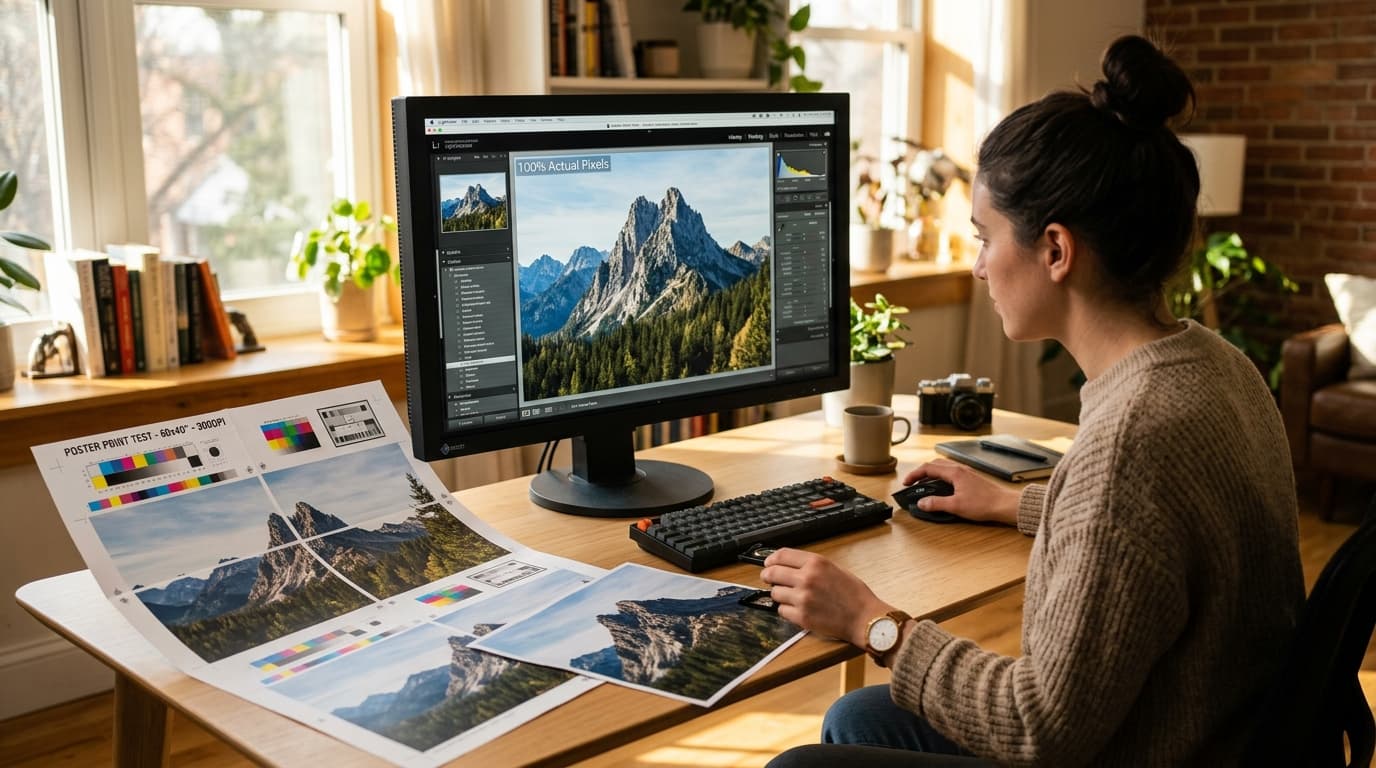
If you are planning to print a giant wall poster across multiple sheets of paper, you probably have one urgent question: Is my image sharp enough to print, or will it look blurry and pixelated on my wall?
You do not want to spend an hour printing 9, 16, or 25 sheets, wasting expensive color ink and paper, only to realize the final poster looks like a blurry mess.
Here is the good news: You can find out whether your image resolution is high enough in under 60 seconds. You do not need professional graphic design software, and you do not need to understand complex printing physics.
Here is the direct answer, followed by the exact steps to check your file right now.
The Quick Verdict: How Many Pixels Do You Actually Need?
To know if your image will print cleanly, only one number matters: your photo's pixel dimensions (width × height in pixels).
Do not look at the file size in megabytes (MB), and do not worry if your file says "72 DPI." Check your photo's pixel dimensions against this straightforward benchmark table:
| Target Poster Size | Multi-Page Grid Setup | Minimum Pixels Needed (Pass / Clear) | Ideal Pixels (Ultra-Sharp) |
|---|---|---|---|
| Small Poster (~16 × 22 in) | 2 sheets wide × 2 sheets tall | 1,600 × 2,200 px (~3.5 MP) | 2,400 × 3,300 px (~8 MP) |
| Medium Poster (~17 × 35 in) | 2 sheets wide × 3 sheets tall (A4) | 1,700 × 3,500 px (~5.8 MP) | 2,500 × 5,000 px (~12.5 MP) |
| Large Poster (~25 × 33 in) | 3 sheets wide × 3 sheets tall | 2,500 × 3,300 px (~8.2 MP) | 3,700 × 5,000 px (~18 MP) |
| Giant Poster (~34 × 44 in) | 4 sheets wide × 4 sheets tall | 3,400 × 4,400 px (~15 MP) | 4,800 × 6,600 px (~31 MP) |
| Full Wall Mural (~42 × 55+ in) | 5 sheets wide × 5 sheets tall | 4,200 × 5,500 px (~23 MP) | 5,500 × 7,500+ px (~41 MP) |
The Golden Rule: Almost any uncompressed photo taken on an iPhone or modern Android smartphone (which shoot at 12 to 48 megapixels natively) is already more than high enough to print a stunning 9-sheet or 16-sheet block poster.
Now, follow these three simple steps to check your specific photo.
Step 1: Find Your Photo's Pixel Dimensions in 5 Seconds
Before doing anything else, check the native pixel dimensions of your image file:
On Windows
- Open File Explorer and find your image file.
- Right-click the file and click Properties.
- Select the Details tab at the top.
- Scroll down to the Image heading and find Dimensions (for example,
4032 × 3024).
On Mac
- Select your image in Finder.
- Press Command + I on your keyboard (or right-click and choose Get Info).
- Expand the More Info section.
- Read the width and height next to Dimensions.
On iPhone or Android
- iPhone / iPad: Open the picture in the Photos app and tap the small "i" (Info) button below the photo. You will see both the megapixel count and the pixel resolution (such as
12 MP • 4032 × 3024). - Android: Open the image in Google Photos, swipe up, and check the resolution details.
Once you have these two numbers (width and height), compare them with the benchmark table above. If your numbers match or exceed the minimum, your photo has enough resolution.
Step 2: The Easy Calculation Formula (Example: 2×3 A4 Poster)
Why do the benchmarks above work? Because wall posters are viewed from a distance of 3 to 6 feet away. At that distance, your eyes only require 100 dots per inch (DPI) to see a crisp, continuous image.
You can calculate the exact minimum pixels required for any custom layout using this basic formula:
Minimum Pixels = Physical Poster Inches × 100
Real-World Example: Printing a 2×3 A4 Poster
Imagine you want to print a vertical poster that is 2 pages wide by 3 pages tall on standard A4 paper:
- Find the physical size in inches:
- One sheet of A4 paper is 8.27 inches wide by 11.69 inches tall.
- Width: 2 sheets × 8.27 in = 16.54 inches.
- Height: 3 sheets × 11.69 in = 35.07 inches.
- Multiply by 100 DPI:
- Minimum Width: 16.54 × 100 = 1,654 pixels.
- Minimum Height: 35.07 × 100 = 3,507 pixels.
That is all the math you need! If your photo has a resolution of at least 1,654 × 3,507 pixels (about 5.8 megapixels), it is 100% ready to print as a 2×3 A4 poster.
Step 3: Two Quick Real-World Tests (No Math Required)
If you prefer not to look at numbers at all, you can verify your image's print readiness with two foolproof practical tests:
Test 1: The 100% Zoom "Step-Back" Screen Test
- Open your photo in your computer's built-in image viewer.
- Zoom in until the zoom slider reads 100% (Actual Pixels / 1:1 view).
- Take two steps back from your computer monitor (about 3 to 4 feet away).
- Look at the edges, facial details, and text. If details look recognizable and natural without blocky pixel squares, your image will look sharp when hung on your wall.
Test 2: The Single-Page Diagnostic Print with Block Poster
Never print an entire 16-page project blindly. Use Block Poster to run a free single-page diagnostic check:
- Go to Block Poster and upload your photo.
- Choose your desired page count (e.g., 2×3 or 3×3 pages).
- Generate and download your multi-page PDF document. Because the tool processes your file locally inside your browser, it preserves every single pixel without compressing your photo.
- Open the PDF, locate just one single page that contains a focal detail (such as a person's eye, face, or small text), and print only that single page.
- Tape that single test sheet on your wall, step back 4 feet, and look at it. If you are satisfied with the sharpness, print the rest of the pages with complete confidence.
FAQs: 72 DPI vs. 300 DPI
"My file properties say 72 DPI. Is it too low to print?"
No, this is a very common point of confusion. 72 DPI is just a digital screen metadata placeholder.
Digital photos have no physical inches until they are printed—they only consist of pixels. An image that is 4,000 × 3,000 pixels will print equally sharp whether its metadata says 72 DPI, 150 DPI, or 300 DPI. What determines sharpness on paper is how many total pixels you have spread across the physical paper area.
"Why do people always say you need 300 DPI?"
The 300 DPI rule applies to handheld reading materials like books, brochures, and photo albums that you hold 10 to 14 inches from your eyes. For wall posters viewed from across a room (3 to 6 feet away), human vision cannot distinguish between 120 DPI and 300 DPI. Demanding 300 DPI for a 3-foot wall poster is completely unnecessary.
Summary Checklist
- Check pixels, not megabytes: Verify exact width and height dimensions in file properties.
- Compare with the benchmark table: For a 2×3 A4 poster, you only need ~1,654 × 3,507 pixels (~5.8 MP).
- Ignore the "72 DPI" label: Total pixel count is what dictates final print quality.
- Test with a single sheet first: Use Block Poster to print just one focal page to verify sharpness before printing the whole poster.
Turn your photo into a wall-ready poster right now.